Photoshop Alternatives Free Online: The Three-Test Bench (Browser, $0, No Watermark)
By the SoftSea editorial team
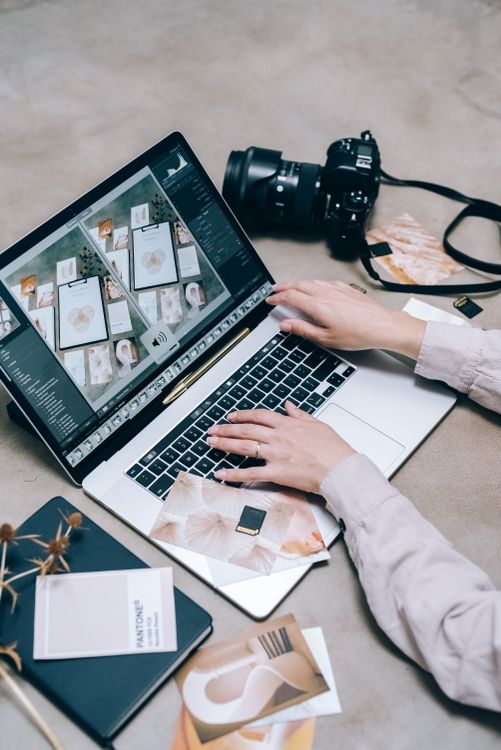
Photo: Leeloo The First / Pexels
Why this bench exists separately
The flagship Photoshop bench covers every exit cause; this page exists because one constraint changes the field completely: the work must happen in a browser, for free, with nothing installed. That constraint is real for school and library computers, locked-down work machines, Chromebooks, borrowed laptops, and anyone whose admin password is a person in another department. Under that constraint, desktop champions like Affinity and GIMP are disqualified by the install test no matter how free they are, and the field shrinks to browser editors. Three tests grade them: browser-only (no download, no plugin, no desktop companion), truly $0 for the described work (not a trial, not a credit card wall), and no watermark or forced branding on export. A tool that fails any test is not bad; it is just not an answer to this query.
Tool
Browser only
Truly $0
No watermark
Verdict
Photopea
Yes
Yes, with ads
Yes
The bench winner
Pixlr
Yes
Free tier yes, with limits
Yes on free exports within tier rules
Strong second, read the tier fine print
Photoshop on the web
Yes
No, subscription
Yes
Fails the $0 test; excellent if you already pay
Canva
Yes
Free tier yes
Mostly; premium elements can watermark
A design tool, not a photo editor bench
Various AI web editors
Yes
Often credits-based
Sometimes
Fail $0 at volume; fine for one-off jobs
Photopea: the answer that keeps winning this test
Photopea is the rare tool that passes all three tests and still behaves like a real editor: layers, masks, adjustment layers, smart objects in some measure, and PSD import and export fidelity that makes it the neutral referee in our other benches. It is free with ads; its Premium price is not published in our dataset, so this bench makes no claim about it beyond "check the vendor page." The costs of Photopea are the browser's costs: performance on very large files depends on your machine and tab memory, offline work does not exist, and your files pass through a web app, which matters for sensitive client work. For the occasional PSD, the school project, the quick composite on a borrowed machine, nothing else in this bench is close. If your constraint relaxes to allow installs, go back to the flagship bench, where Affinity is free and stronger.
Interactive tool
Comparison Builder
Pick two or three products and see them side by side on the numbers that decide the purchase.
Measure
Photopea
Pixlr
Adobe Photoshop
Starting paid price
Free
Not published
$22.99 per user/mo, billed annually
Free option
Free plan: full editor in the browser, supported by ads, no account needed
Free plan: browser editors with ads and limits on some AI tools
Free trial only: 7 days
Plans
Free: free · Premium: not published
Premium tiers: not published
Photoshop single app (annual plan): $22.99/user/mo annual
Platforms
Web
Web
Windows, macOS, iPad, Web
Best for
occasional PSD work, students and Chromebook users, quick edits on any machine
quick browser edits, social and product images, users who split time between quick and layered work
retouching and compositing, commercial photo work, designers who live in layers
Strengths
Nothing to install; runs on Chromebooks and locked-down machines; PSD compatibility is the best outside Photoshop itself; Familiar interface for Photoshop-trained hands
Two depths in one product: quick edits and layered work; AI tools in the browser, including background removal; Nothing to install; runs anywhere a browser does
Deepest layer, mask, and selection tools in the category; Generative Fill and Remove tools built in; The file format and workflow every retoucher shares
Watch out for
Smart objects and some adjustment layers do not survive round trips intact; Performance depends on the browser and machine; Ad-supported free tier
PSD fidelity trails Photopea; Free tier limits some AI features; Paid prices could not be carried at this dataset standard
Subscription only, no purchase option; Weak library and batch workflow compared with Lightroom; Overkill for quick social edits
Lowest entry price: Photopea at Free per month flat. Real free plan: Photopea, Pixlr. Entry price is the floor, not the decision: check the plan line above for the tier that actually includes the feature you need.
All figures from vendor pricing pages, checked November 18, 2026. Some vendors price by contacts, tasks, or operations instead of seats; those notes are in the plan data and the linked pricing guides.
Pixlr: the friendly second
Pixlr is the more approachable browser editor, with a gentler interface and AI features in the mix, and its free tier passes this bench's tests for ordinary work within the tier's limits. The caveats are the tier's shape: free tiers meter something, whether exports, AI actions, or file sizes, and the meter moves over time, so the correct habit is to check the current limits page before a deadline depends on it. For casual editing, social images, and quick fixes, Pixlr's friendliness is a real feature; for PSD-heavy work, Photopea's fidelity wins. The AI bench grades the AI tools inside both.
The failures, named politely
Photoshop on the web is genuinely good and genuinely not free: it rides on the subscription, so it fails test two while being the fidelity champion. Canva is a design tool whose free tier is generous, but it is not a layer-based photo editor, and premium elements inside a design can carry watermark rules that surprise at export. The long tail of AI web editors typically fails test two at volume (credits) or test three (resolution caps that function as watermarks). And a special warning for search results in this category: many "free online Photoshop" clones are ad farms wearing an editor's skin. If the site buries its pricing, injects download buttons, or asks for a browser extension, close it; the three real names above are enough.
Privacy and file handling in a browser editor
Browser editing means your photo leaves your machine, at least to the extent the app processes or stores it. For personal photos and public work, that trade is usually fine. For unreleased products, client-confidential images, or anything under an NDA, the browser route is the wrong route regardless of price, and the free desktop tools in the open source bench keep files home at the same $0. Also mind the school and work machine angle: files you edit on a borrowed computer have a way of staying in its downloads folder. Export, then delete, then empty the trash if the machine is not yours.
Performance reality check
Browser editors are astonishingly capable and still bounded by tab memory. A dozen layers on a phone photo: effortless. A 100-megapixel panorama with adjustment stacks: bring patience or a desktop tool. Work in smaller increments, save versions as separate files (browser tools make duplication cheap), and keep your master PSD exports somewhere that is not only a browser's local storage. The bench's promise is real but sized: this field replaces Photoshop for occasional and moderate work, not for the heaviest production days.
Chromebook and classroom notes
The three-test field matters most where installs are impossible, and that usually means managed devices: school Chromebooks, library terminals, corporate loaners. Two notes for those environments. First, managed networks sometimes block the ad networks or storage these tools use; test on the actual machine and network before a class or a deadline depends on it, because a tool that passes at home can fail behind a school filter. Second, student and shared-machine work should live in an account you control (export the PSD or PNG to your own drive or cloud the same day), because a browser editor's local storage on a shared machine is a diary left on a bus. Teachers standardizing on one tool for a class should pick Photopea for PSD compatibility with the wider world, or Pixlr for the gentlest first hour; both choices are defensible, and mixing them in one classroom is how file-format questions eat a lesson.
The verdict
Under the three tests, Photopea wins and Pixlr seconds. That is the whole podium, and a short podium is the honest shape of this category. If your constraint is truly browser-only and $0, start at Photopea and stop shopping. If your constraint softens even slightly, an installable free editor will serve you better, and the flagship bench is waiting.
Interactive tool
The free online three-test audit
Check off each step as you finish it. Your progress stays on this page.
0 of 5 complete
0% done
Related guides
This decision rarely stands alone. The guides below cover the closest questions on the chart, each with prices checked on the vendor pages.
What is the best free online Photoshop alternative?
Photopea. It runs entirely in the browser, costs $0 with ads, exports without watermarks, and opens and saves PSD files with fidelity no other free web tool matches. Pixlr is the friendlier second for casual work. Everything else in this category fails at least one of the three tests this bench applies: browser-only, truly $0, no watermark.
Is Photopea really free without watermarks?
Yes on the terms this bench tests: the free tier is ad-supported, and exports do not carry a watermark. Photopea sells a Premium tier that removes ads and adds features; its price is not published in our dataset, so check the vendor page for the current figure rather than trusting any roundup, including the numbers in older versions of articles like this one.
Can I edit PSD files online for free?
Yes, in Photopea, which imports and exports PSD with strong fidelity for ordinary layered files. Exotic Photoshop features can shift, as they can in every non-Adobe tool. Pixlr handles PSD more lightly. For a one-off client file on a machine you cannot install on, Photopea is the standard answer.
Is Photoshop on the web free?
No. Photoshop on the web is part of Adobe's subscription offering, so it fails this bench's $0 test even though it is an excellent browser editor with the best PSD fidelity in the browser class. If you already subscribe, it may be all the browser editor you need; if you do not, it is not a free alternative.
Are free online editors safe for client photos?
For ordinary work, the mainstream names here are established products. For confidential, unreleased, or NDA-covered images, no browser editor is the right call, because the file leaves your machine by design. Use a free desktop editor such as GIMP or Affinity for sensitive work; the price is the same $0 and the file never travels.
Photo credits: Leeloo The First (Pexels). Photos are served from this site; follow the credit to the library page for the original.